Production Testing

Overview

This document describes the production test procedure for the ADMV96S-WGBE-EK1 multi board kit. The procedure focuses on firmware programming and testing the two BR-073235 boards included in the kit.

Pre-Required Setup

Board Assembly

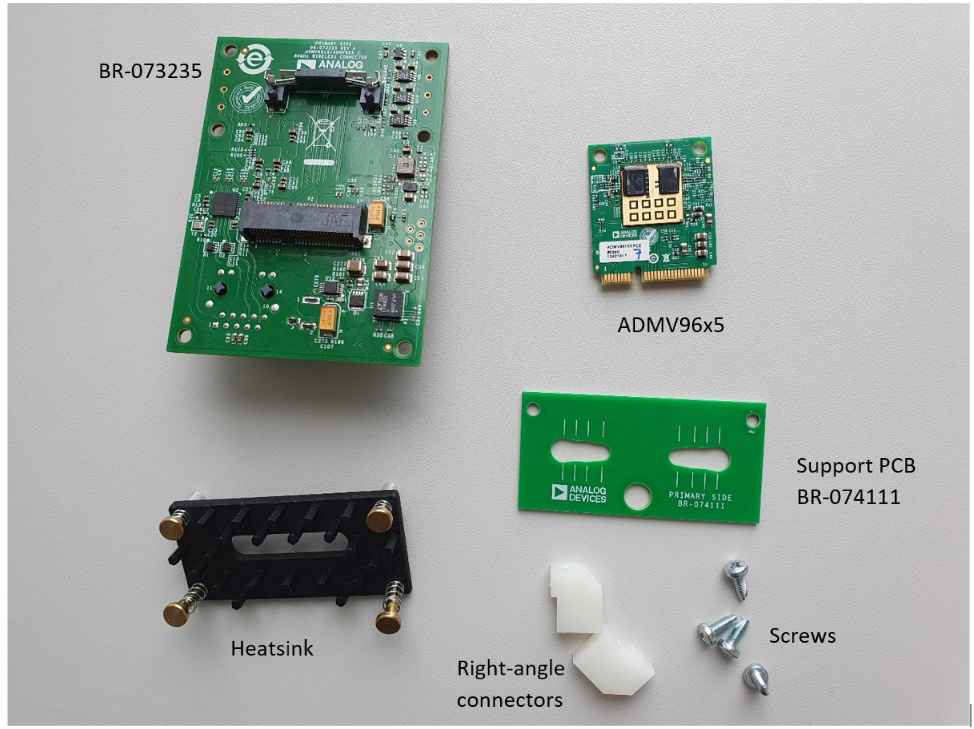
The disassembled boards must be assembled as a DUT (Device Under Test) before proceeding with the testing steps.
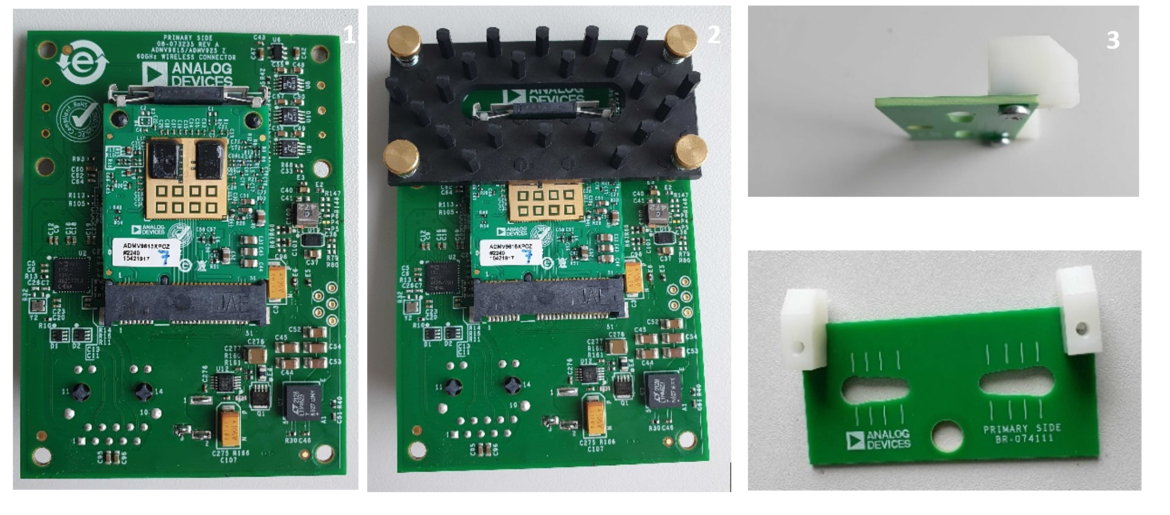
https://media.githubusercontent.com/media/plescaevelyn/adi-documentation/admv96s_prod_test/docs/solutions/reference-designs/admv96s-wgbe-ek1/production_testing/images/disassembled_board.png

Figure 1 Disassembled boards overview

https://media.githubusercontent.com/media/plescaevelyn/adi-documentation/admv96s_prod_test/docs/solutions/reference-designs/admv96s-wgbe-ek1/production_testing/images/disassembled_board_1.png

Figure 2 Disassembled board components - view 1

https://media.githubusercontent.com/media/plescaevelyn/adi-documentation/admv96s_prod_test/docs/solutions/reference-designs/admv96s-wgbe-ek1/production_testing/images/disassembled_board_2.png

Figure 3 Disassembled board components - view 2

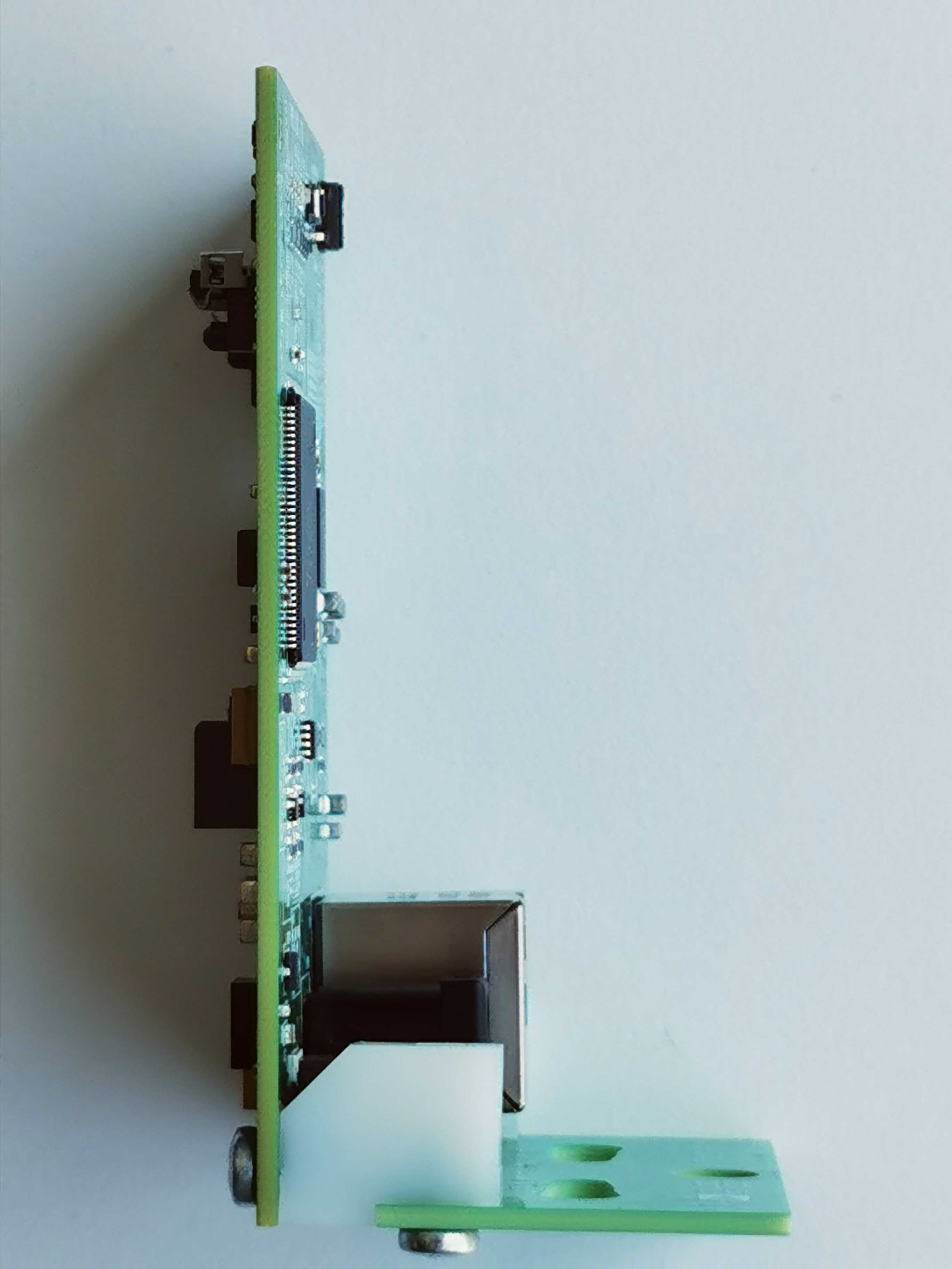
  1. Attach the right-angle connectors with the screws to the support PCB and the BR-073235.

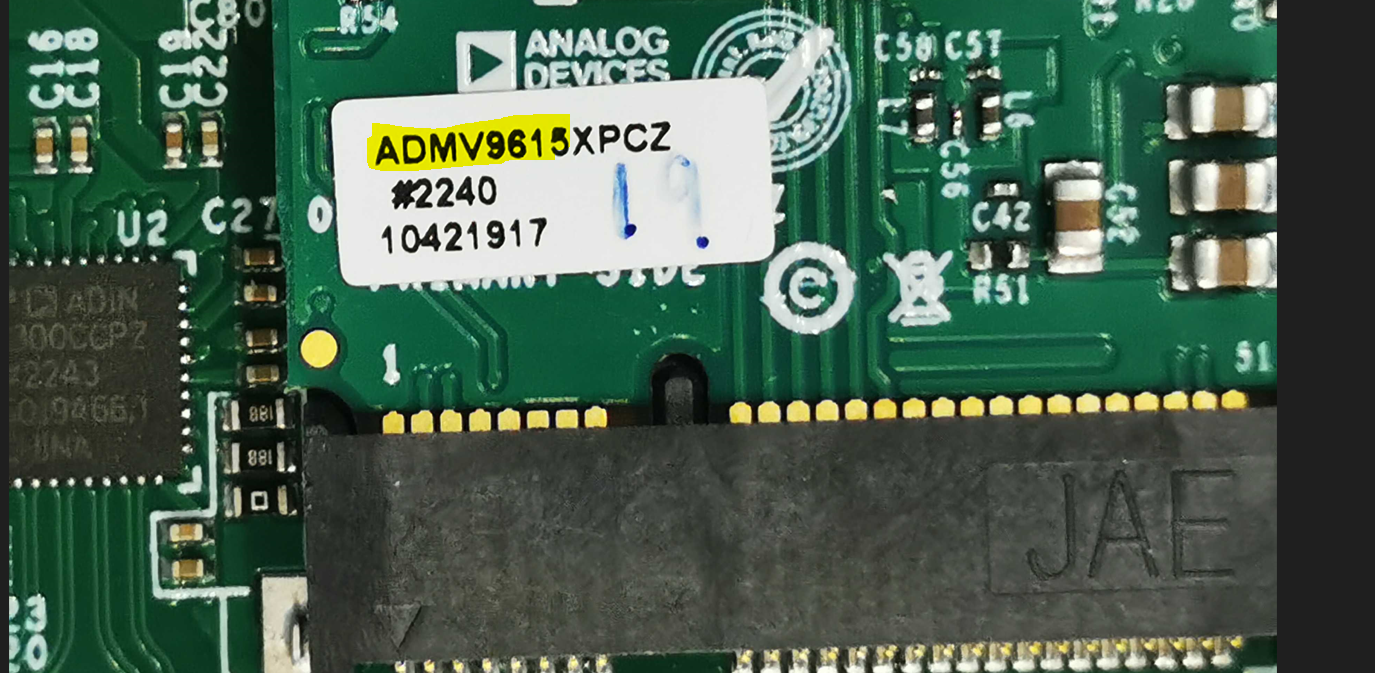
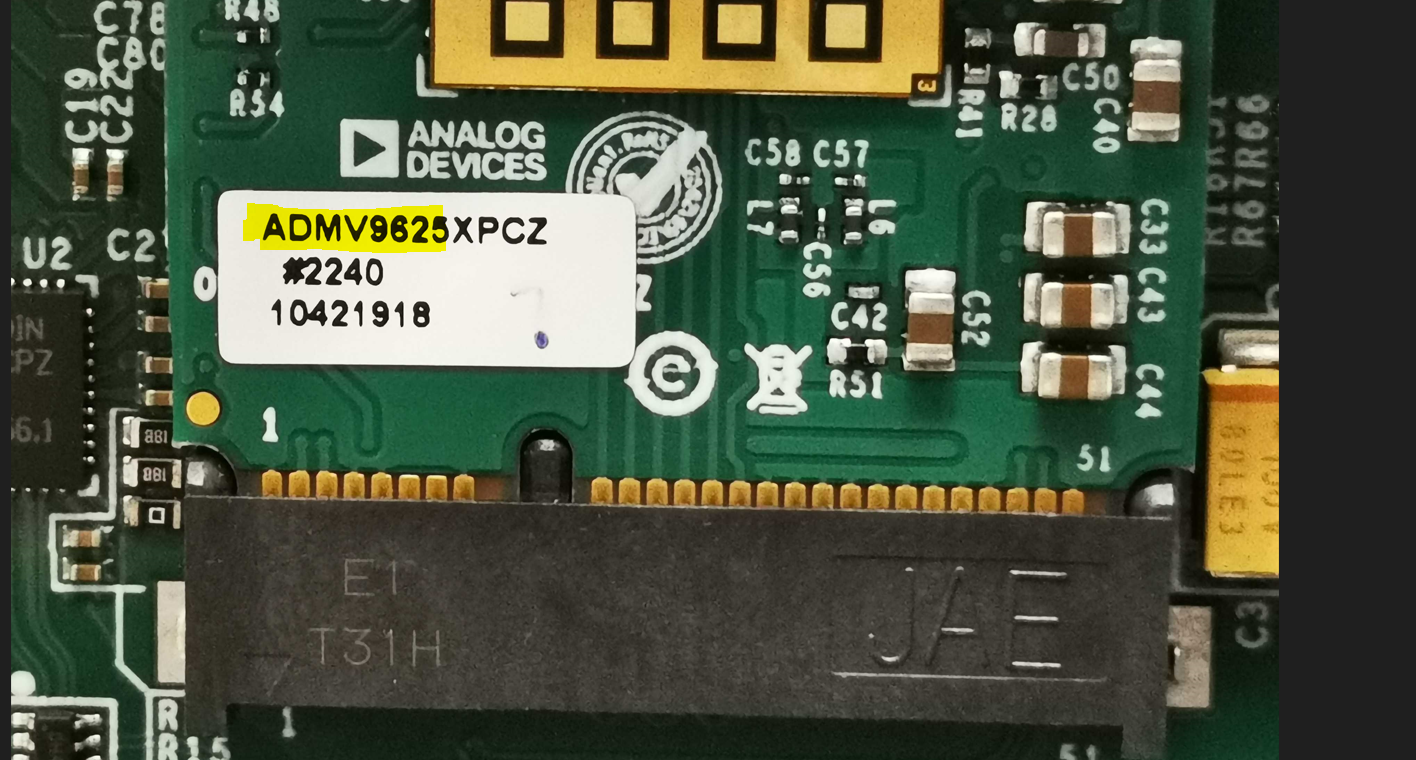
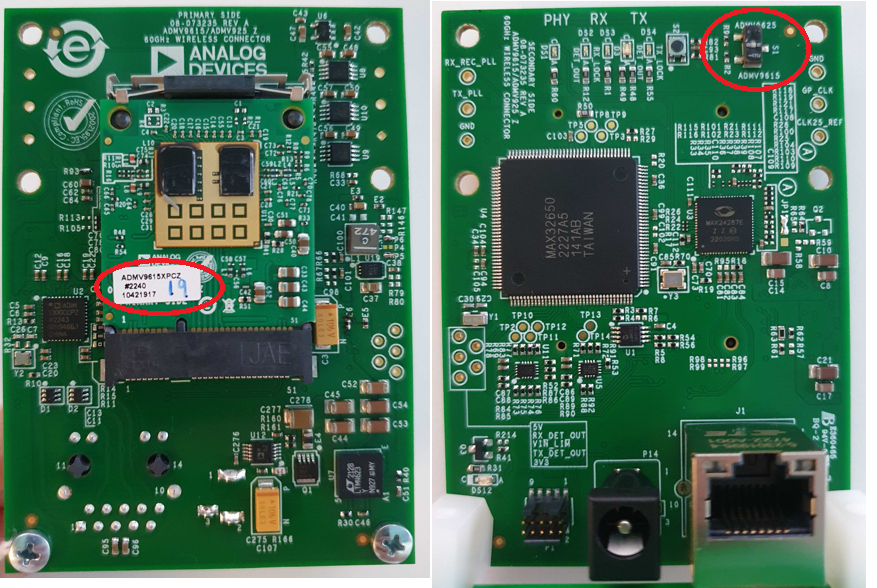
  2. Populate the ADMV96x5 module on the board and read the label to identify whether it is an ADMV9615 or ADMV9625.
    https://media.githubusercontent.com/media/plescaevelyn/adi-documentation/admv96s_prod_test/docs/solutions/reference-designs/admv96s-wgbe-ek1/production_testing/images/populated_board_module.png

    Figure 4 Populated board with module

    ADMV9615 Label

    ADMV9625 Label

    https://media.githubusercontent.com/media/plescaevelyn/adi-documentation/admv96s_prod_test/docs/solutions/reference-designs/admv96s-wgbe-ek1/production_testing/images/admv9615_label.png
    https://media.githubusercontent.com/media/plescaevelyn/adi-documentation/admv96s_prod_test/docs/solutions/reference-designs/admv96s-wgbe-ek1/production_testing/images/admv9625_label.png
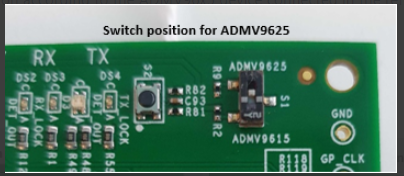
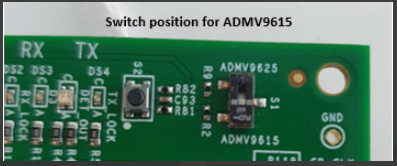
  3. With a small tool like a screwdriver, move the S1 switch into ADMV9615 or ADMV9625 position depending on which module was installed.

    ADMV9615 Switch Position

    ADMV9625 Switch Position
    https://media.githubusercontent.com/media/plescaevelyn/adi-documentation/admv96s_prod_test/docs/solutions/reference-designs/admv96s-wgbe-ek1/production_testing/images/admv9615_switch_position.png
    https://media.githubusercontent.com/media/plescaevelyn/adi-documentation/admv96s_prod_test/docs/solutions/reference-designs/admv96s-wgbe-ek1/production_testing/images/admv9625_switch_position.png
  4. Mount the board on the test-jig in the correct position:

    • If the newly assembled board has an ADMV9615 module, mount it in front of the REFERENCE ADMV9625.

    • If the newly assembled board has an ADMV9625 module, mount it in front of the REFERENCE ADMV9615.
    https://media.githubusercontent.com/media/plescaevelyn/adi-documentation/admv96s_prod_test/docs/solutions/reference-designs/admv96s-wgbe-ek1/production_testing/images/test_jig_mount.jpg
    https://media.githubusercontent.com/media/plescaevelyn/adi-documentation/admv96s_prod_test/docs/solutions/reference-designs/admv96s-wgbe-ek1/production_testing/images/test_jig_mount_2.jpg.png

Heatsink Assembly

Mount a heatsink (S08ERQ0J-D) on each BR-073235 before packaging.

Steps for assembling the heatsink:

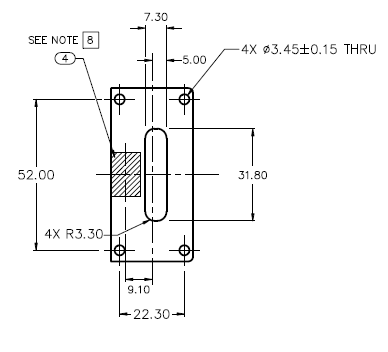
  1. Make sure the S08ERQ0J-D heatsink has the thermal pad in the approximate position shown in the datasheet.
    https://media.githubusercontent.com/media/plescaevelyn/adi-documentation/admv96s_prod_test/docs/solutions/reference-designs/admv96s-wgbe-ek1/production_testing/images/heatsink_assembly_schematic.png

    Figure 5 Heatsink assembly schematic

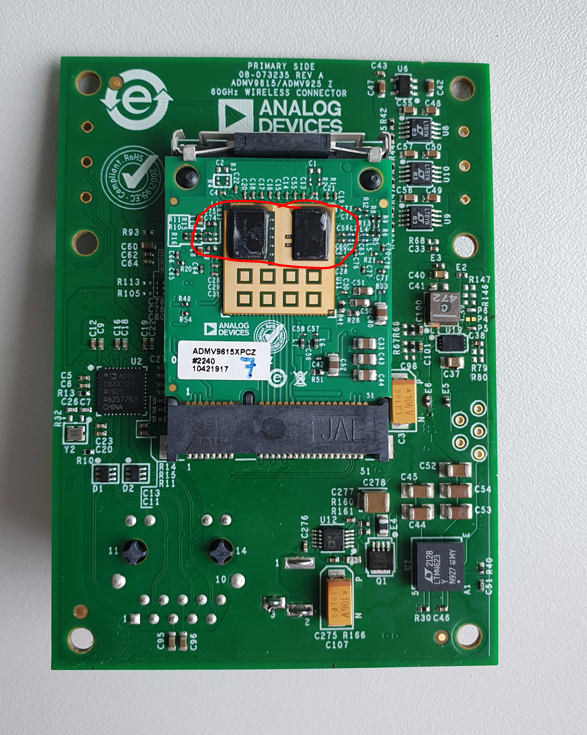
  2. Peel the liner from the thermal pad and make sure it sticks to the highlighted area of the board.
    https://media.githubusercontent.com/media/plescaevelyn/adi-documentation/admv96s_prod_test/docs/solutions/reference-designs/admv96s-wgbe-ek1/production_testing/images/heatskin_position.png

    Figure 6 Heatsink position on the board

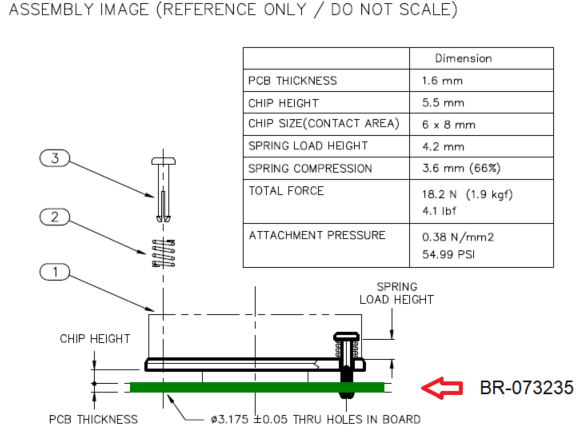
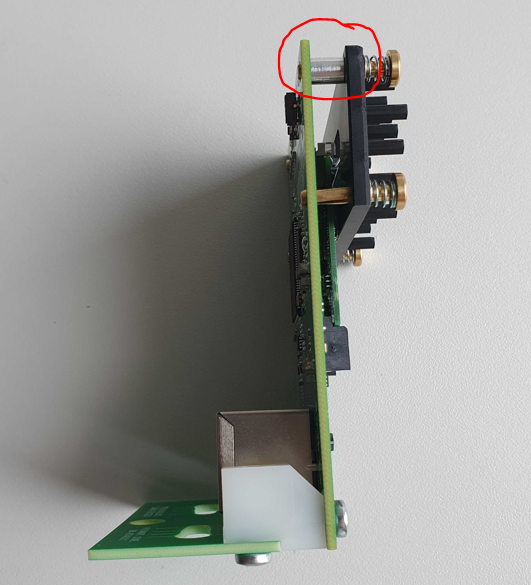
  3. Two aluminum unthreaded spacers (94669A101) must be placed between the BR-073235 and heatsink on the pins that go in the corners of the board.
    https://media.githubusercontent.com/media/plescaevelyn/adi-documentation/admv96s_prod_test/docs/solutions/reference-designs/admv96s-wgbe-ek1/production_testing/images/aluminium_spacers_schematic.png
    https://media.githubusercontent.com/media/plescaevelyn/adi-documentation/admv96s_prod_test/docs/solutions/reference-designs/admv96s-wgbe-ek1/production_testing/images/aluminium_spacers_position.png

Test Process

Required Hardware

  • Raspberry Pi 4

  • Mouse and keyboard

  • Ethernet to Usb3 adapter

  • MAX32625PICO (Daplink programmer) x2

  • Ethernet cable

  • Raspberry Pi power supply

  • Raspberry Pi HDMI cable

  • Display

  • 2 Power supplies for the ADMV96S-WGBE

  • 2 Reference ADMVs mounted to a support

Required Software

SD card with the test image.

Required Setup

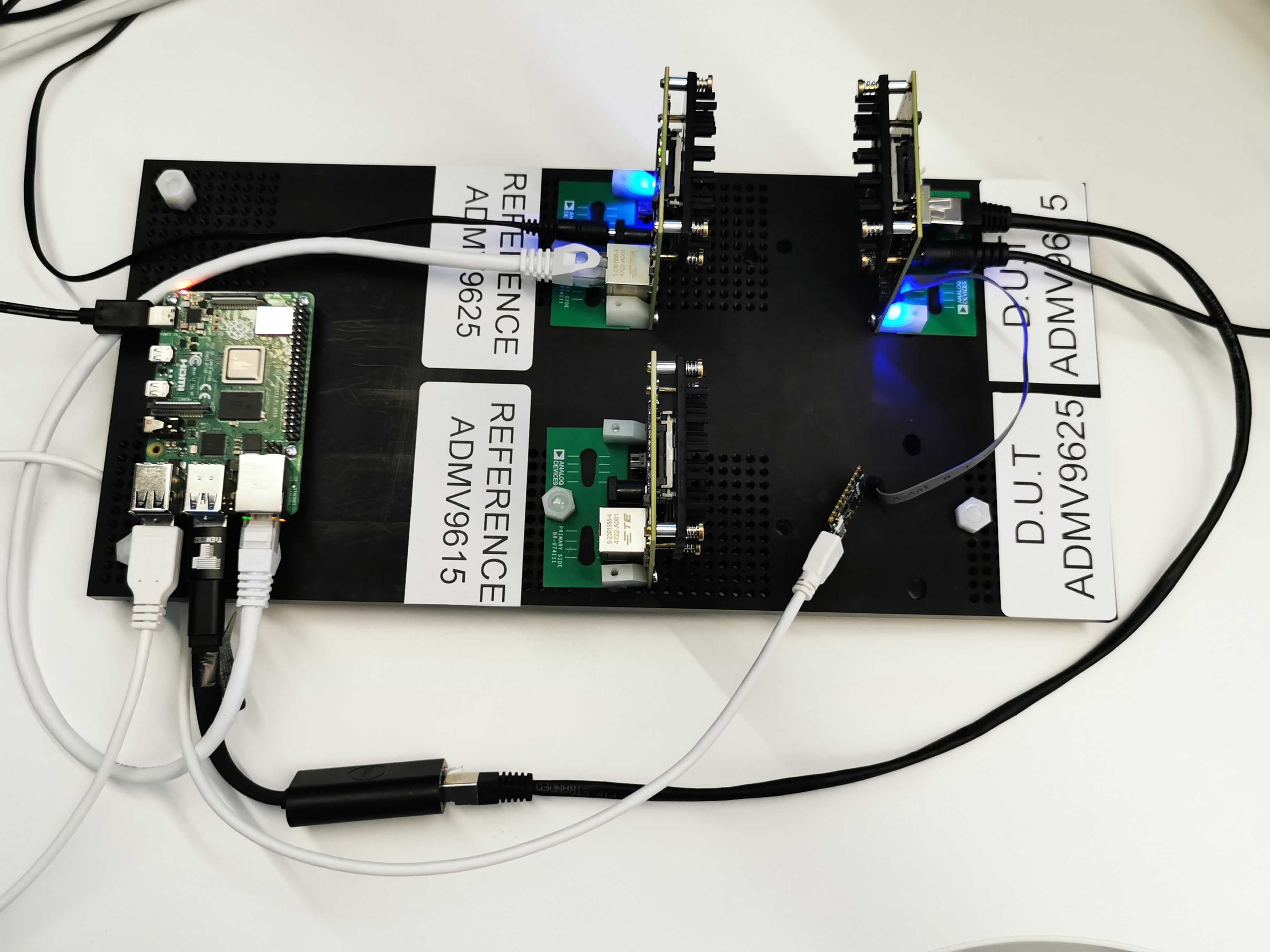
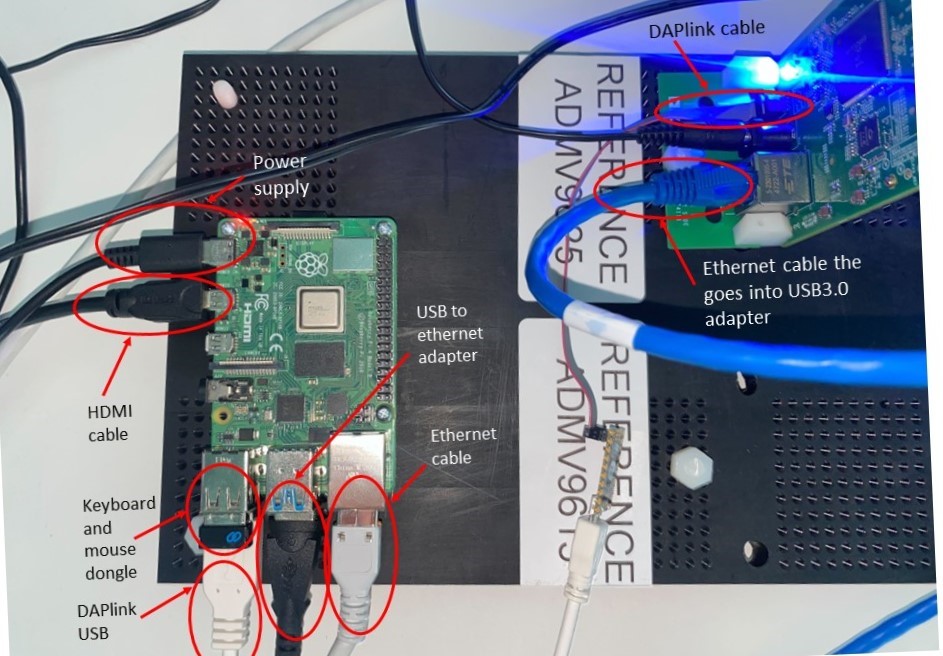
  1. Insert the SD card into the Raspberry Pi.

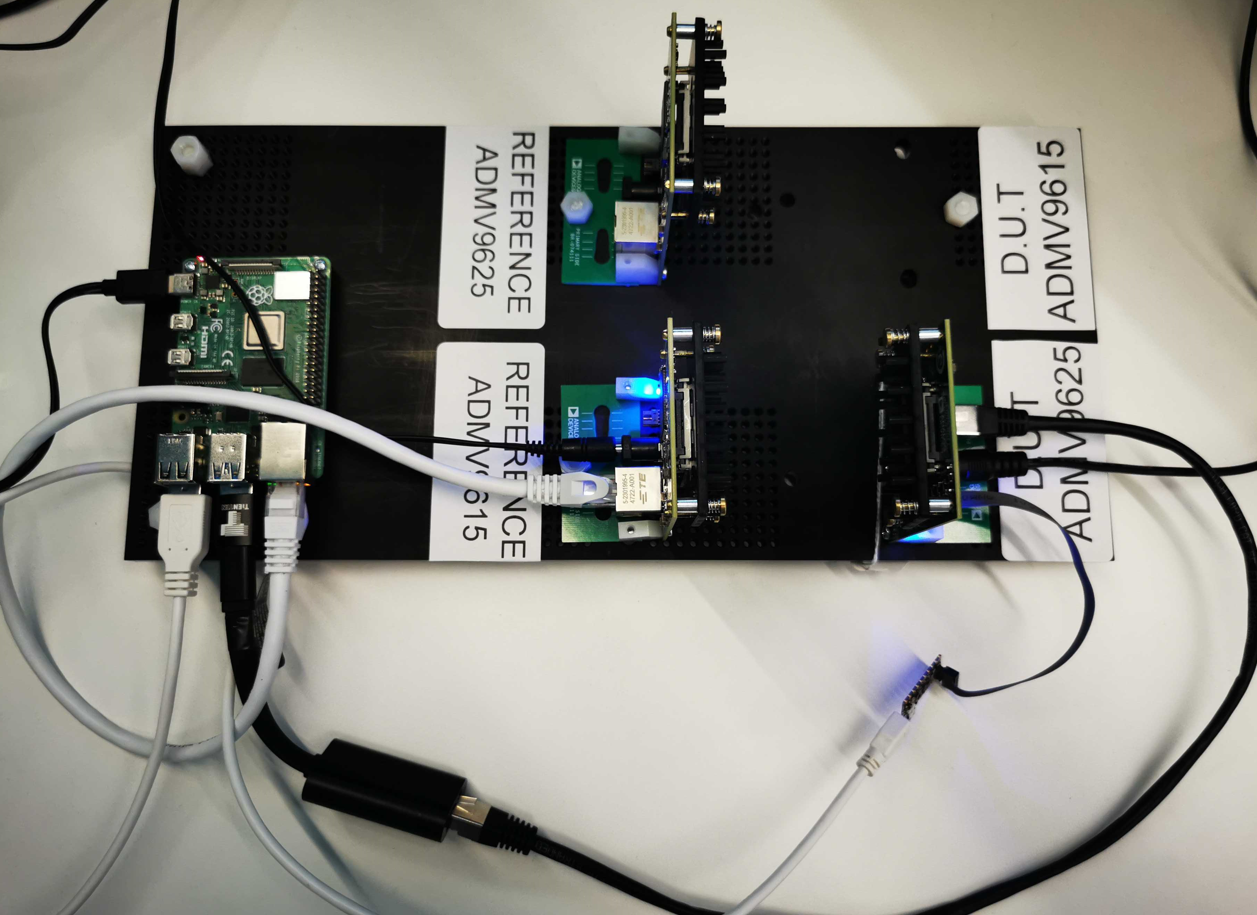
  2. Connect an Ethernet cable from the Pi Ethernet port to the D.U.T Ethernet port.

  3. Connect an Ethernet cable to the reference ADMV and via an Ethernet to Usb3 adapter, connect it to the Pi Usb3.0 hub.

  4. Connect the Daplink cable to the Raspberry Pi Usb on one side and to the JTAG SWD connector of the D.U.T. on the other side.

  5. Connect the HDMI cable to the Pi and a Display.

  6. Connect the keyboard and mouse dongle into the Raspberry Pi.

  7. Connect the Raspberry Pi power adapter.

  8. Power the DUT and the reference ADMV.
https://media.githubusercontent.com/media/plescaevelyn/adi-documentation/admv96s_prod_test/docs/solutions/reference-designs/admv96s-wgbe-ek1/production_testing/images/system_setup.jpg

Figure 7 Complete system setup

Testing Procedure

Wi-Fi Setup

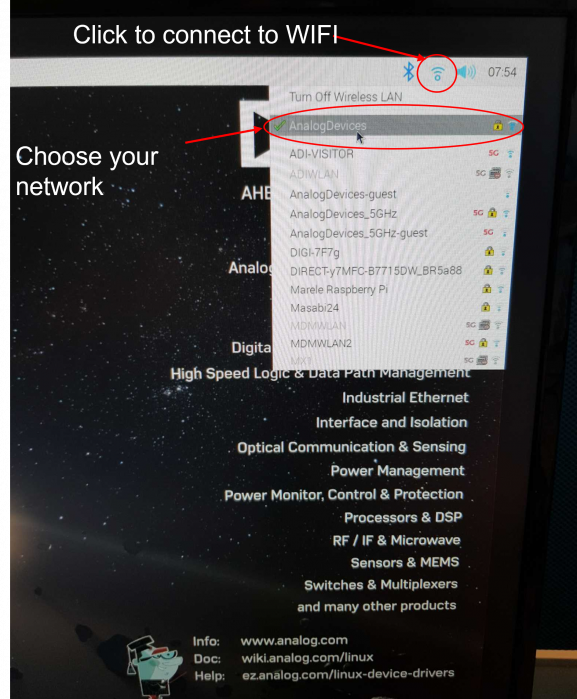
Make sure the Raspberry Pi is connected to Wi-Fi before starting the tests.

  1. Power the Raspberry Pi.

  2. Press CONTROL+C to exit the test screen.

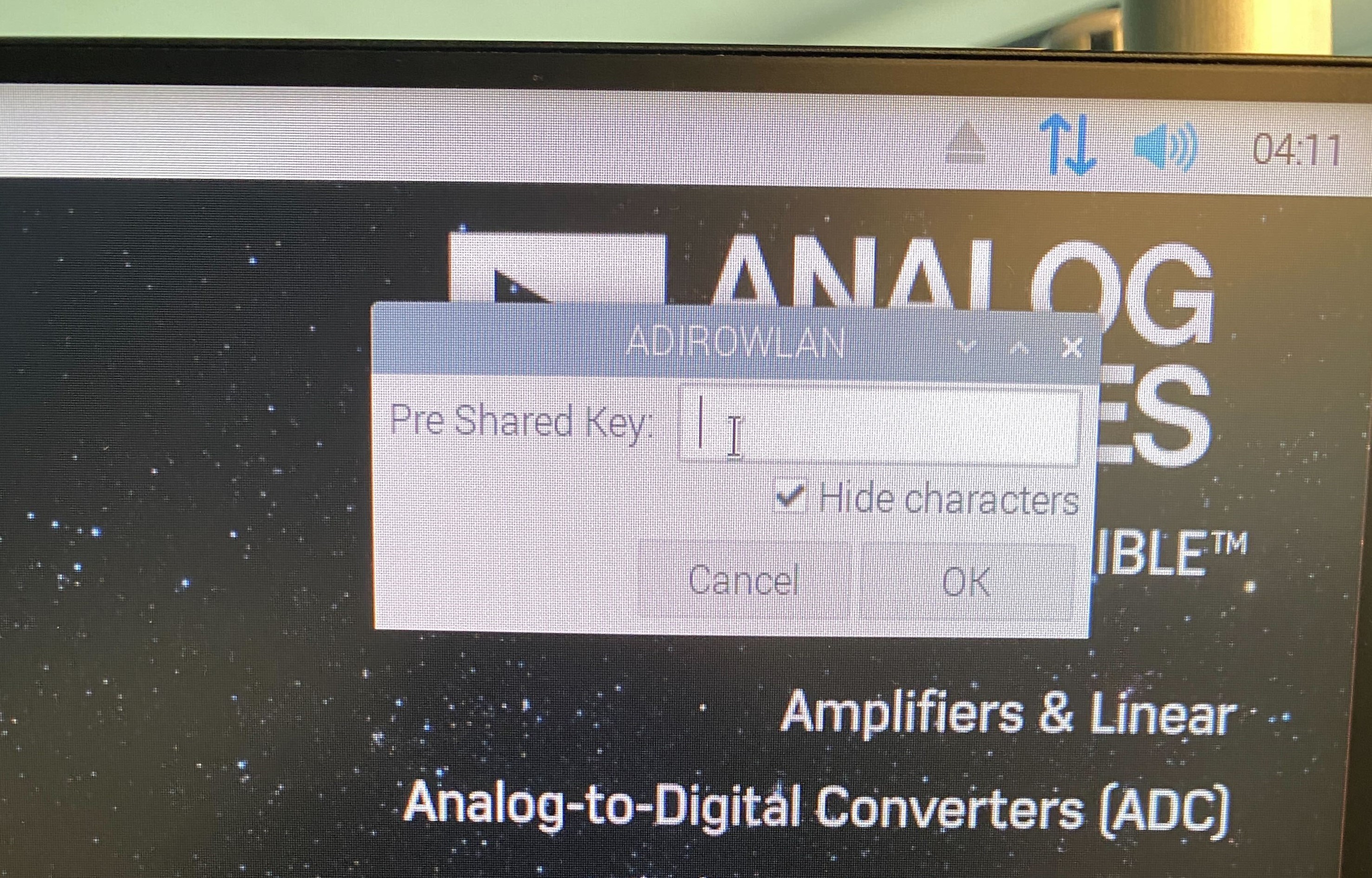
  3. Click on the network and type in the password.
    https://media.githubusercontent.com/media/plescaevelyn/adi-documentation/admv96s_prod_test/docs/solutions/reference-designs/admv96s-wgbe-ek1/production_testing/images/wifi_connection.png
    https://media.githubusercontent.com/media/plescaevelyn/adi-documentation/admv96s_prod_test/docs/solutions/reference-designs/admv96s-wgbe-ek1/production_testing/images/wifi_password.jpg
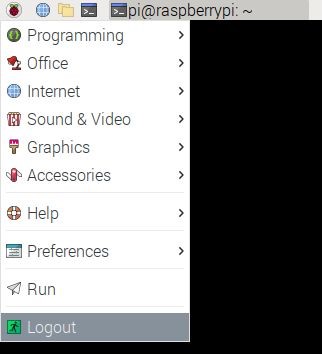
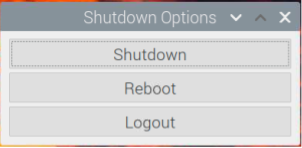
  4. Reboot the Raspberry Pi to reinitialize the test screen by following the screen instructions.
    https://media.githubusercontent.com/media/plescaevelyn/adi-documentation/admv96s_prod_test/docs/solutions/reference-designs/admv96s-wgbe-ek1/production_testing/images/reboot.png
    https://media.githubusercontent.com/media/plescaevelyn/adi-documentation/admv96s_prod_test/docs/solutions/reference-designs/admv96s-wgbe-ek1/production_testing/images/logout.jpg

Running the Tests

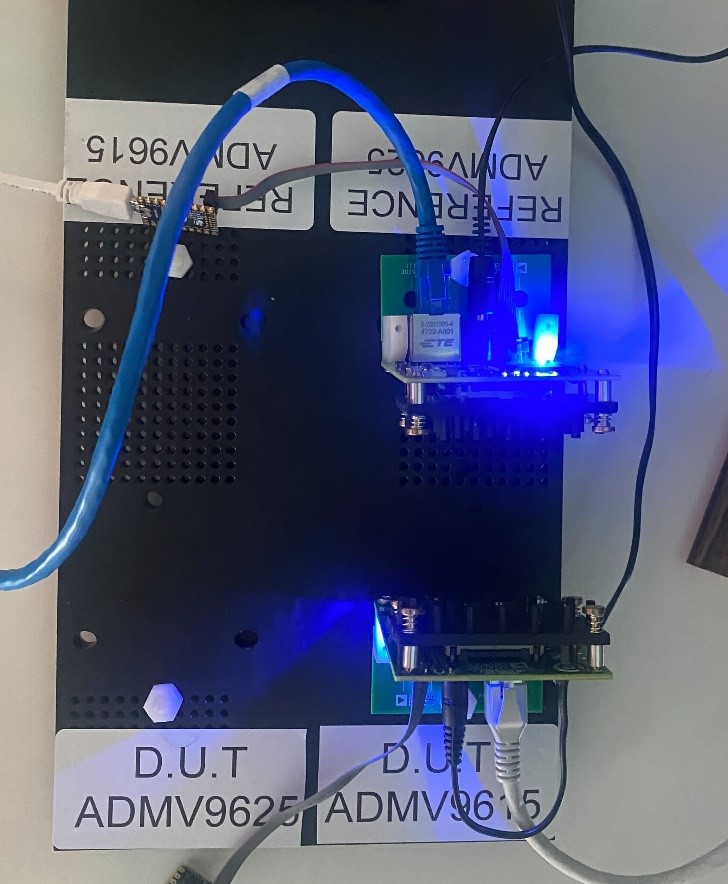
After rebooting the Raspberry Pi, the test screen will appear. Make sure the DUT and the reference board are perfectly parallel, facing each other.
https://media.githubusercontent.com/media/plescaevelyn/adi-documentation/admv96s_prod_test/docs/solutions/reference-designs/admv96s-wgbe-ek1/production_testing/images/dut_and_ref_board_setup.jpg

Figure 8 DUT and reference board setup

1) Provisioning Test

Type 1 from the keyboard to start the Provisioning test.

https://media.githubusercontent.com/media/plescaevelyn/adi-documentation/admv96s_prod_test/docs/solutions/reference-designs/admv96s-wgbe-ek1/production_testing/images/test_command_1.jpg

Figure 9 Starting the Provisioning test

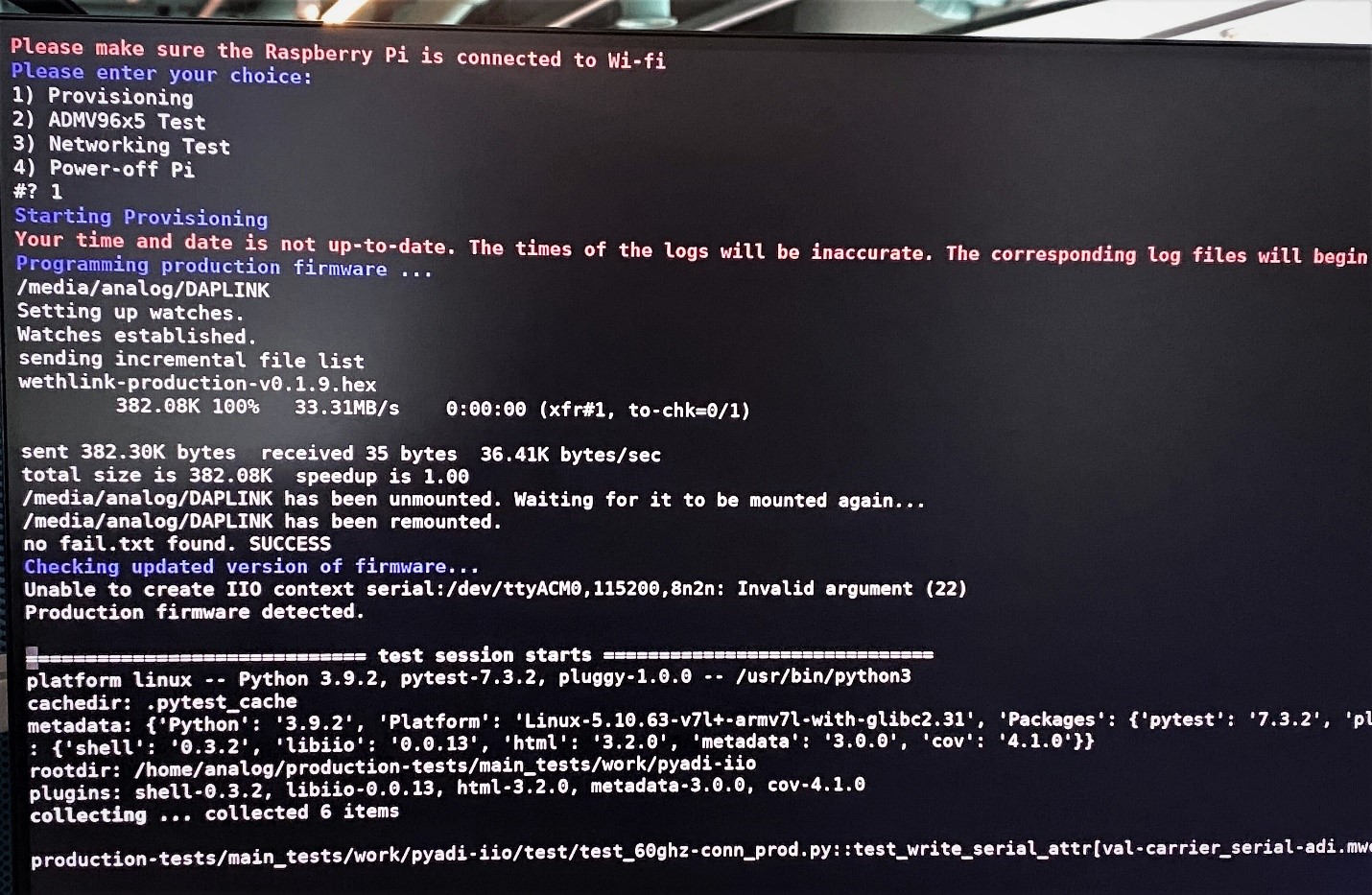
The test has two parts: writing the firmware and checking that it is the “Production firmware”, and writing attributes.
https://media.githubusercontent.com/media/plescaevelyn/adi-documentation/admv96s_prod_test/docs/solutions/reference-designs/admv96s-wgbe-ek1/production_testing/images/test_command_1_wip.jpg

Figure 10 Provisioning test in progress

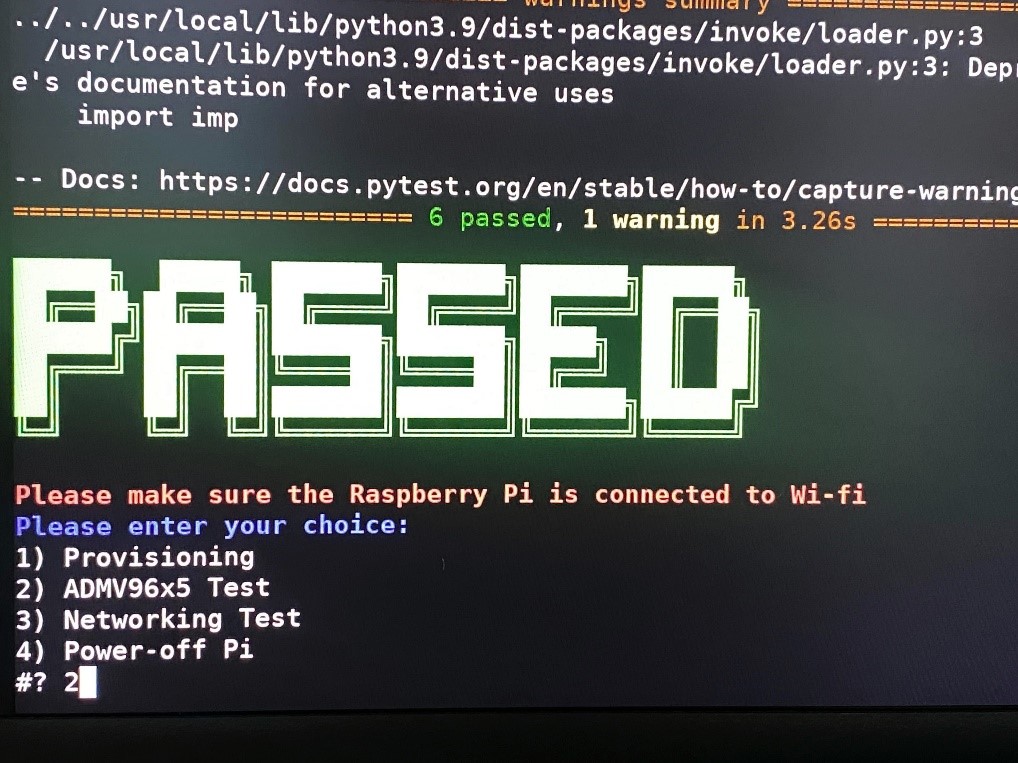
If the test is successful, a PASSED message will appear.
https://media.githubusercontent.com/media/plescaevelyn/adi-documentation/admv96s_prod_test/docs/solutions/reference-designs/admv96s-wgbe-ek1/production_testing/images/test_command_1_passed.jpg

Figure 11 Provisioning test passed

2) ADMV96x5 Test

Type 2 to run the ADMV96x5 Test.

https://media.githubusercontent.com/media/plescaevelyn/adi-documentation/admv96s_prod_test/docs/solutions/reference-designs/admv96s-wgbe-ek1/production_testing/images/test_command_2.jpg

Figure 12 Starting the ADMV96x5 test

If the test is successful, the PASSED message will appear.

https://media.githubusercontent.com/media/plescaevelyn/adi-documentation/admv96s_prod_test/docs/solutions/reference-designs/admv96s-wgbe-ek1/production_testing/images/test_command_2_passed.jpg

Figure 13 ADMV96x5 test passed

3) Network Test

Type 3 to run the Network Test.

https://media.githubusercontent.com/media/plescaevelyn/adi-documentation/admv96s_prod_test/docs/solutions/reference-designs/admv96s-wgbe-ek1/production_testing/images/test_command_3.jpg

Figure 14 Starting the Network test

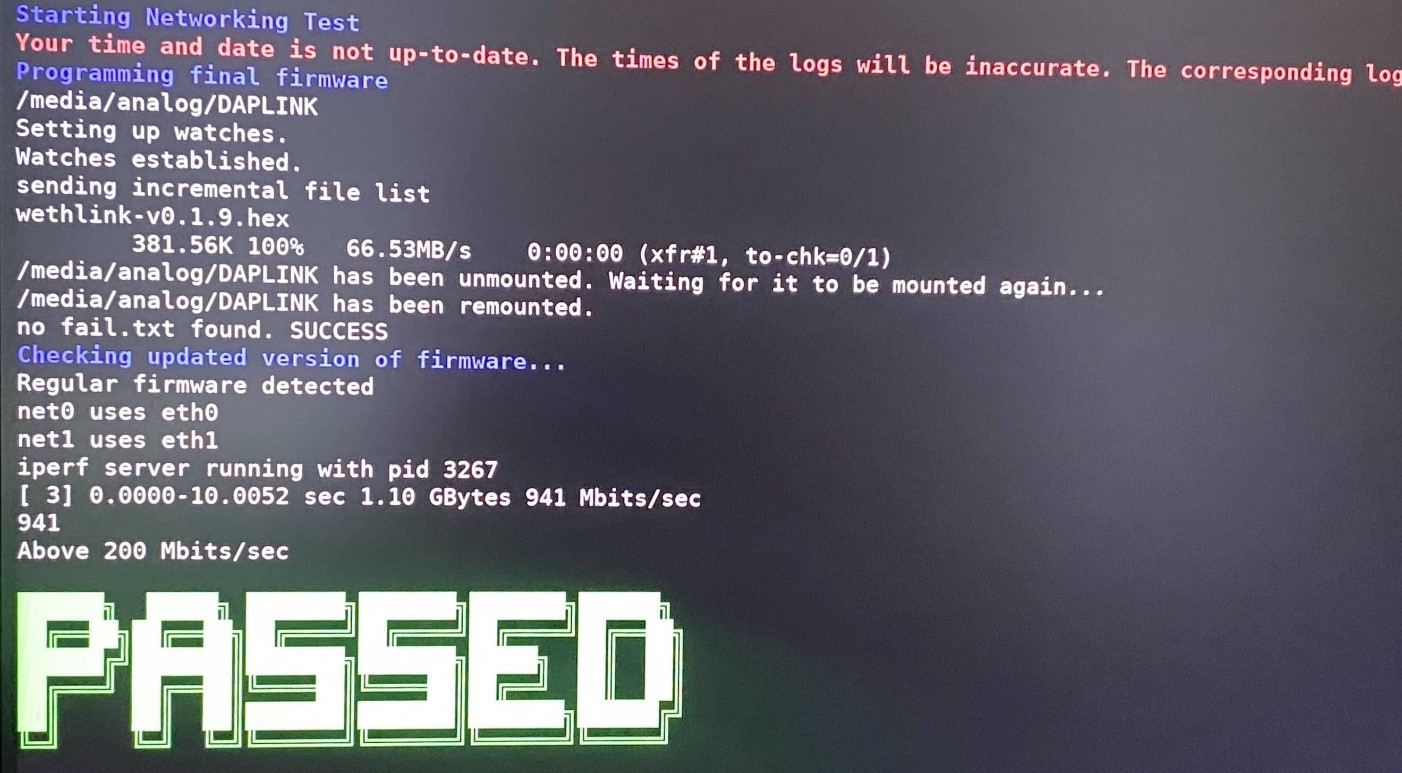
If the test is successful, the PASSED message will appear.
https://media.githubusercontent.com/media/plescaevelyn/adi-documentation/admv96s_prod_test/docs/solutions/reference-designs/admv96s-wgbe-ek1/production_testing/images/test_command_3_passed.jpg

Figure 15 Network test passed

Attention

If the networking test fails, unplug and plug again the Usb3 to Ethernet adapter into the Raspberry Pi.

After all tests are completed, proceed to the next untested DUT and repeat the testing procedure.

When done testing, type 4 to power off the Raspberry Pi.