Production Testing

Overview

The purpose of the test procedure is to identify connectivity issues, poor soldering, and potential manufacturing defects. Some of the issues are directly identified by explicit part-targeted tests, others are implicit, by running adjacent tests.

Note

Before production testing the AD-RPI-T1LPSE-SL board, the FTDI chip needs to be programmed. See the FTDI Programming section below.

FTDI Programming

Programming the board is done using the MAX77958_2S3 software, which can only be installed on Windows.

Required Hardware

  • Raspberry Pi used for production testing

  • 1 x PC with Windows 10

  • MAX77958EVKIT-2S3 V1.0.0

  • Usb Type-C cable

  • MAX32625PICO (Daplink programmer)

  • Usb to I2C adapter board

Required Software

  • secure_update_BC58_verD005.bin - binary file containing the firmware

  • MAX77958EVKIT-2S3 V1.0.0 installed on Windows 10 - available from the ADI Software Download page

Required Setup

https://media.githubusercontent.com/media/plescaevelyn/adi-documentation/rpit1lpse_prod_test/docs/solutions/reference-designs/ad-rpi-t1lpse-sl/production_testing/images/ftdi_programming_required_setup.png

Figure 1 FTDI programming required setup

Programming Procedure

  1. Power the device under test and make sure S2 switch is in position as shown in the image above.

  2. Connect the mini programmer to the PC and open the MAX77958EVKIT-2S3 V1.0.0 application. This step can be done only once and the app can be kept open for programming the next board.

    https://media.githubusercontent.com/media/plescaevelyn/adi-documentation/rpit1lpse_prod_test/docs/solutions/reference-designs/ad-rpi-t1lpse-sl/production_testing/images/ftdi_programming_connection_setup.png

    Figure 2 Connection setup

  3. In the opened app, connect to the test board by clicking on Device -> Connect -> Yes -> Read and Close.

  4. In the opened MAX77958_2S3 app, click on Tools -> Firmware Update… -> Open -> select secure_update_BC58_verD005.bin in the folder where it is saved -> Open -> Start.

    https://media.githubusercontent.com/media/plescaevelyn/adi-documentation/rpit1lpse_prod_test/docs/solutions/reference-designs/ad-rpi-t1lpse-sl/production_testing/images/ftdi_programming_firmware_programming_commands.png

    Figure 3 Commands to program the firmware

  5. Wait for the board to be programmed until the “…Completed” message is displayed.

    https://media.githubusercontent.com/media/plescaevelyn/adi-documentation/rpit1lpse_prod_test/docs/solutions/reference-designs/ad-rpi-t1lpse-sl/production_testing/images/ftdi_programming_firmware_programming_completion_message.png

    Figure 4 Completion message for writing the firmware

  6. Disconnect the board from MAX77958_2S3 application by clicking Device -> Disconnect.
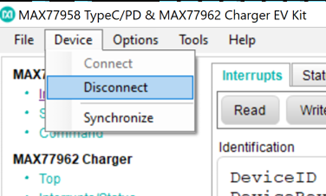
    https://media.githubusercontent.com/media/plescaevelyn/adi-documentation/rpit1lpse_prod_test/docs/solutions/reference-designs/ad-rpi-t1lpse-sl/production_testing/images/ftdi_programming_board_disconnection.png

    Figure 5 How to disconnect the board from MAX77958_2S3 application

After disconnecting the board from the PC, follow the instructions in the testing procedure below.

Test Duration

Step Description

Estimate Time (minutes)

Test bench setup

3 min

Software test

5 min

Total time

8 min

Test Requirements

Required Hardware

  • Raspberry Pi 4

  • HDMI cable

  • Mouse and keyboard

  • AD-RPI-T1LPSE-SL (Device Under Test)

  • T1L cable and AD-SWIOT1L-SL board

  • 12V power supply Usb Type-C

Required Software

The test image is provided on a pre-configured SD card.

Required Setup

  1. Insert the SD card into the Raspberry Pi.

  2. Connect the Raspberry Pi to a monitor, keyboard, and mouse.

  3. Insert the AD-RPI-T1LPSE-SL on top of the Raspberry Pi.

  4. Connect the T1L cable to AD-RPI-T1LPSE-SL and the AD-SWIOT1L-SL board.

  5. Power the AD-RPI-T1LPSE-SL using a Type-C power supply (12V).
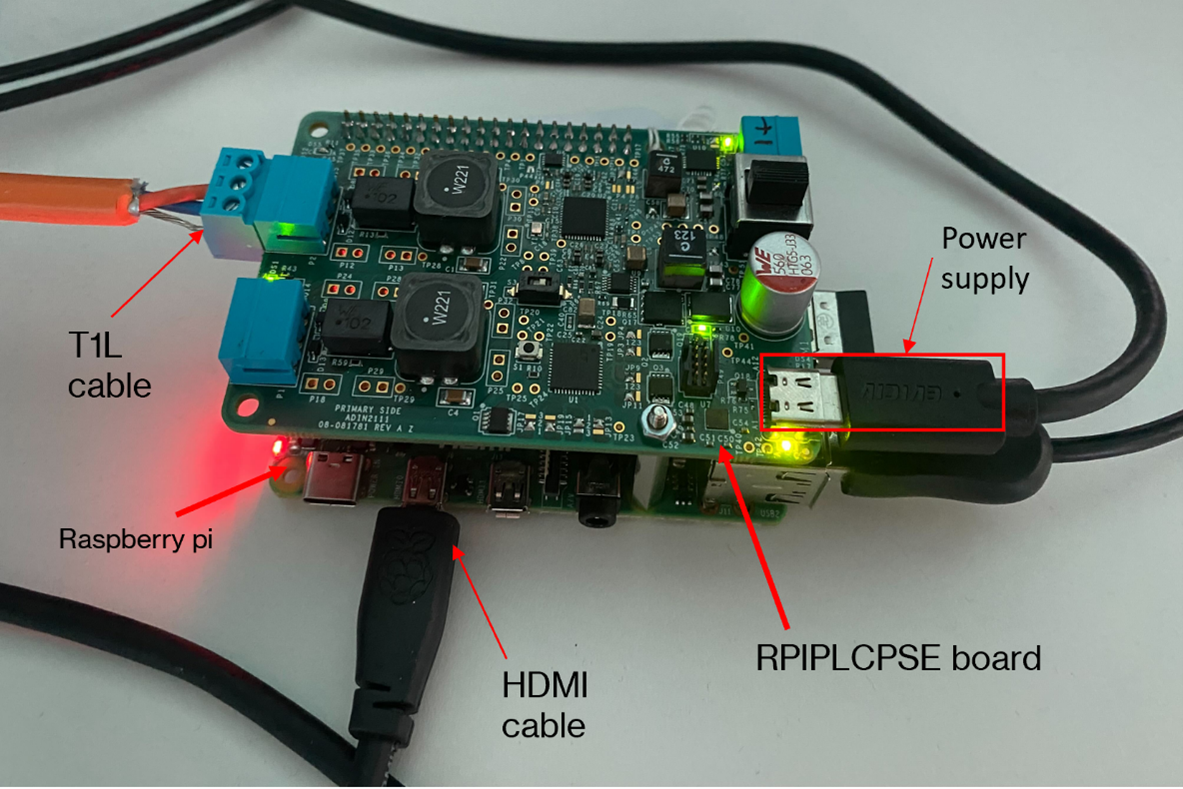
https://media.githubusercontent.com/media/plescaevelyn/adi-documentation/rpit1lpse_prod_test/docs/solutions/reference-designs/ad-rpi-t1lpse-sl/production_testing/images/rpi_setup.png

Figure 6 Raspberry Pi setup

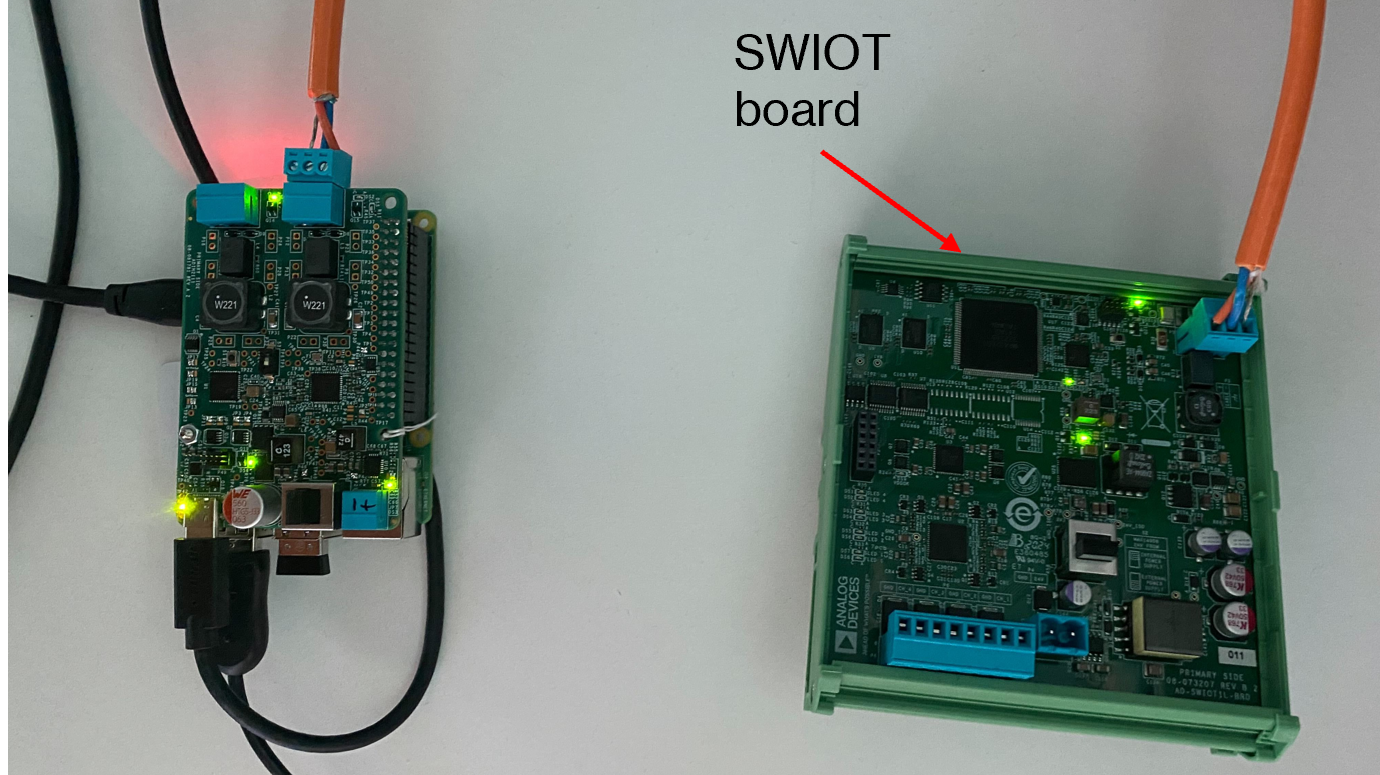
https://media.githubusercontent.com/media/plescaevelyn/adi-documentation/rpit1lpse_prod_test/docs/solutions/reference-designs/ad-rpi-t1lpse-sl/production_testing/images/system_setup.png

Figure 7 Complete system setup

Test Process

Wi-Fi Setup

Make sure the Raspberry Pi is connected to Wi-Fi before starting the tests.
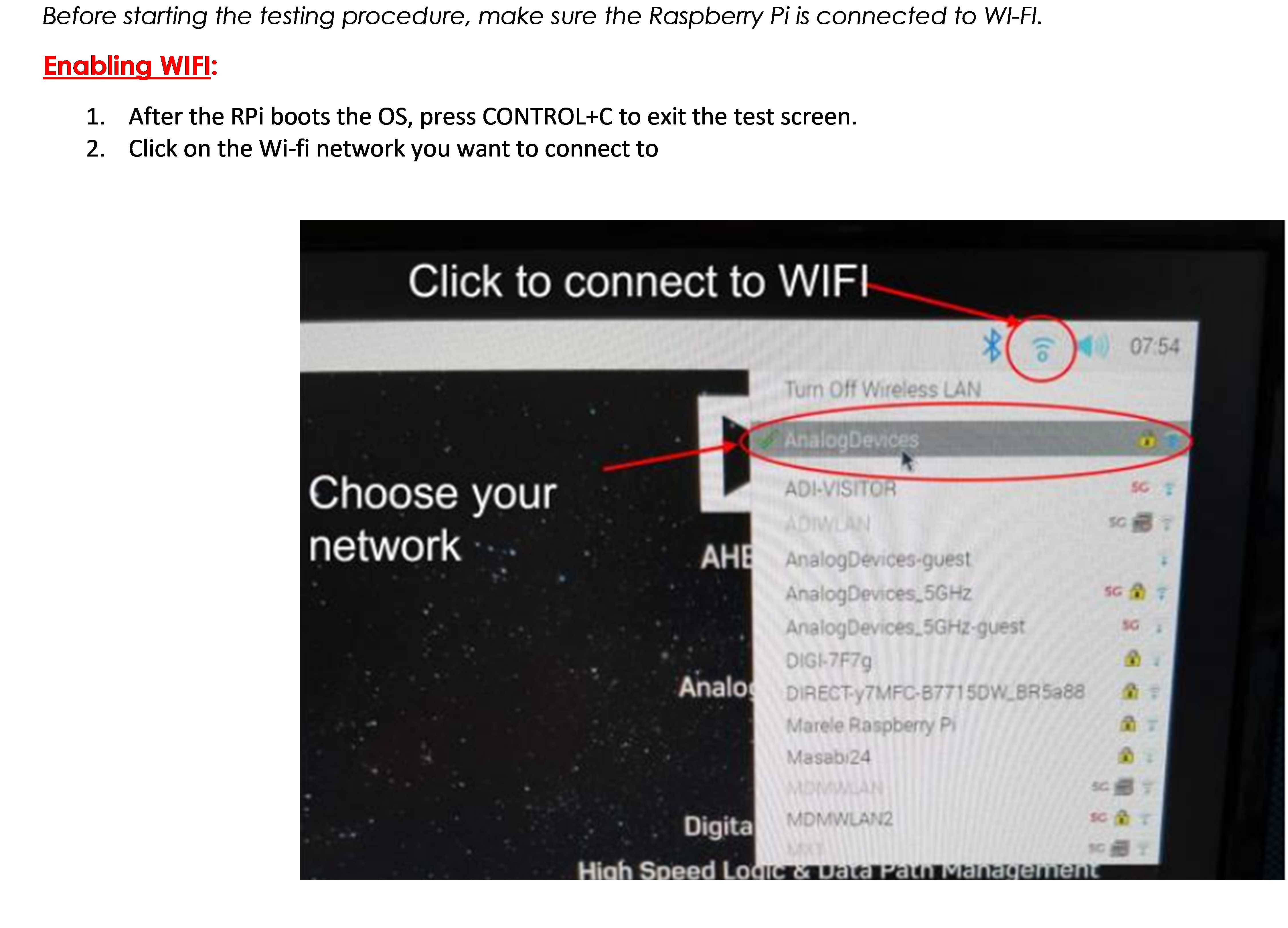
  1. Power the Raspberry Pi.

  2. Press CONTROL+C to exit the test screen.

  3. Click on the network and type in the password.

    https://media.githubusercontent.com/media/plescaevelyn/adi-documentation/rpit1lpse_prod_test/docs/solutions/reference-designs/ad-rpi-t1lpse-sl/production_testing/images/wifi_connection.png

    Figure 8 Wi-Fi connection

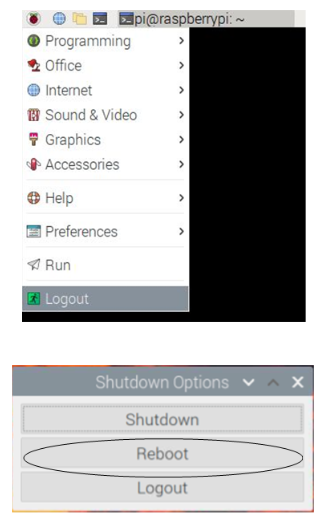
  4. After successfully connecting, reboot the Raspberry Pi by following the instructions below.

    https://media.githubusercontent.com/media/plescaevelyn/adi-documentation/rpit1lpse_prod_test/docs/solutions/reference-designs/ad-rpi-t1lpse-sl/production_testing/images/reboot1.png

    Figure 9 Reboot instructions

Running the Tests

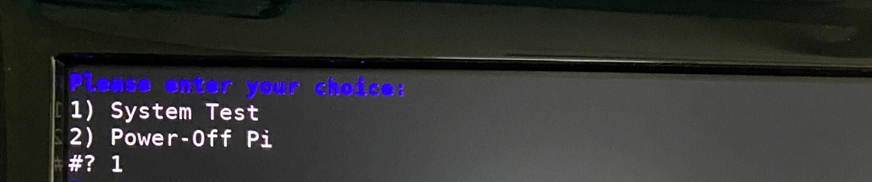
After the Raspberry Pi reboots, the test screen will appear on the monitor.
https://media.githubusercontent.com/media/plescaevelyn/adi-documentation/rpit1lpse_prod_test/docs/solutions/reference-designs/ad-rpi-t1lpse-sl/production_testing/images/test_monitor.png

Figure 10 Test menu

1) System Test

Type 1 into the terminal then press ENTER to start “1) System Test”.

https://media.githubusercontent.com/media/plescaevelyn/adi-documentation/rpit1lpse_prod_test/docs/solutions/reference-designs/ad-rpi-t1lpse-sl/production_testing/images/test_command_1.png

Figure 11 Starting the System test

Connect the T1L cable to port 1.

https://media.githubusercontent.com/media/plescaevelyn/adi-documentation/rpit1lpse_prod_test/docs/solutions/reference-designs/ad-rpi-t1lpse-sl/production_testing/images/test_command_1_board.png

Figure 12 T1L cable connection to port 1

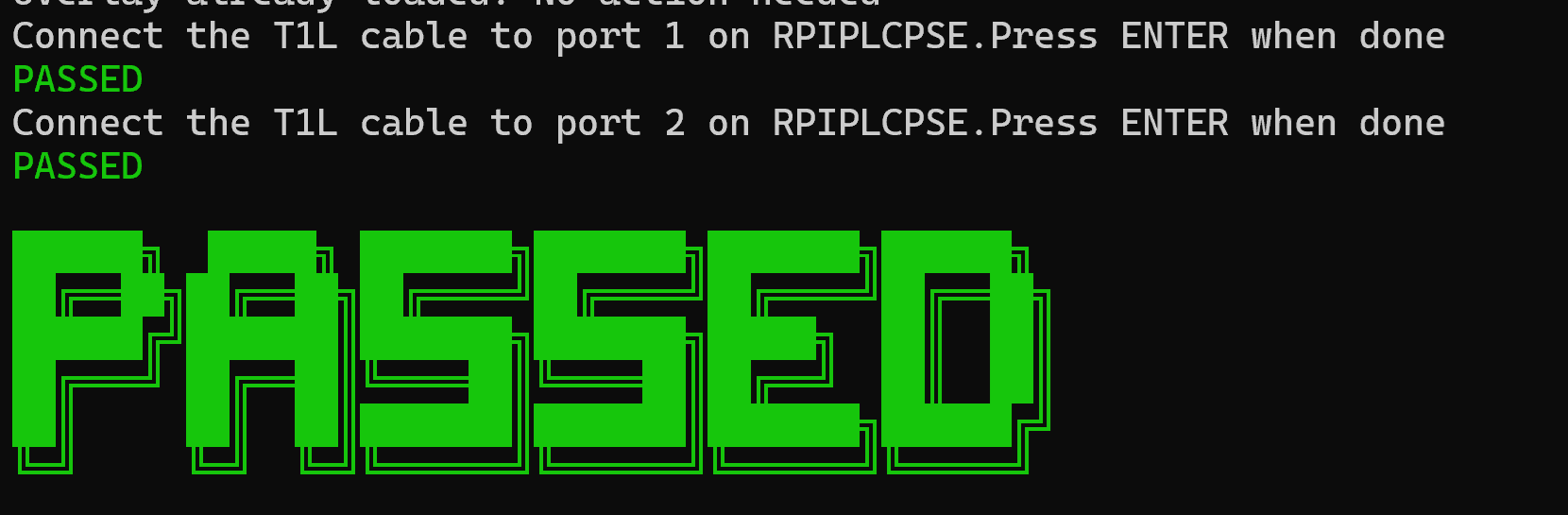
If the test is PASSED, the DUT is functional. Continue testing the other boards.
https://media.githubusercontent.com/media/plescaevelyn/adi-documentation/rpit1lpse_prod_test/docs/solutions/reference-designs/ad-rpi-t1lpse-sl/production_testing/images/test_command_1_passed.png

Figure 13 System test passed