Customizing the ADALM-PLUTO
Changing the Network
The RFC 1918
reserves the 192.168.*.* range for private networks. Analog Devices uses
192.168.2.* for PlutoSDR devices, which may conflict with existing networks
using the same subnet.
The default network settings are:
[NETWORK]
hostname = pluto
ipaddr = 192.168.2.1
ipaddr_host = 192.168.2.10
netmask = 255.255.255.0
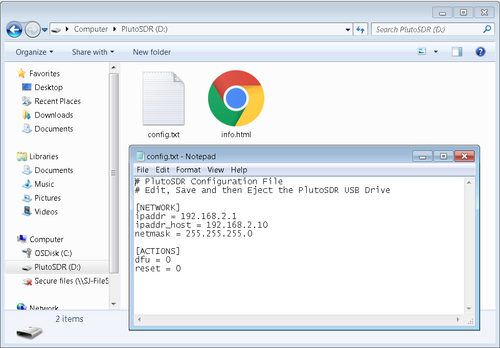
You can modify these values to avoid conflicts. Both addresses must remain unique and on the same subnet.
Multiple Devices
For multiple PlutoSDR units on a single host:
USB mode: Works without modifications
Network mode: Requires unique IP address assignments for each device
Each device must have a distinct subnet to prevent address collisions.
Zeroconf/mDNS
The Avahi daemon running on the PlutoSDR enables zero-configuration networking.
The hostname can be customized in config.txt and allows connection via
hostname.local format.
Linux
Install Avahi support:
analog@analog:~$ sudo apt-get install avahi-daemon avahi-utils
Discovery commands:
analog@analog:~$ avahi-resolve --name pluto.local
analog@analog:~$ avahi-browse -d local _ssh._tcp --resolve -t
analog@analog:~$ avahi-browse -d local _sftp-ssh._tcp --resolve -t
Windows
Windows implements LLMNR (Link-Local Multicast Name Resolution) by default, which Avahi doesn’t support. You may need applications like Skype, iTunes, or Adobe Photoshop that bundle compatible protocols.
Config File Actions
The [ACTIONS] section in config.txt allows you to trigger specific
operations:
[ACTIONS]
diagnostic_report = 0
dfu = 0
reset = 0
Available actions:
Action |
Function |
|---|---|
|
Generates status file for troubleshooting |
|
Enters Device Firmware Upgrade mode |
|
Reboots the device |
Process: Edit config.txt → Save → Eject USB drive (not unplug) →
Device processes changes after 2-3 seconds.
Upgrading the RF Transceiver
The ADALM-PLUTO can be configured to emulate different AD936x variants:
Chip |
Tuning Range |
Bandwidth |
Channels |
|---|---|---|---|
AD9363 (default) |
325-3800 MHz |
20 MHz |
2 Rx, 2 Tx |
AD9364 |
70-6000 MHz |
56 MHz |
1 Rx, 1 Tx |
AD9361 |
70-6000 MHz |
56 MHz |
2 Rx, 2 Tx |
Warning
This only changes the software configuration. The hardware is still an AD9363, but it will operate with the extended capabilities of the selected variant.
Configuration via U-Boot
Access the device via serial connection or SSH (user: root, password:
analog) and use U-Boot fw_printenv and fw_setenv commands.
For AD9364 mode (70-6000 MHz, 1R1T):
root@pluto:~# fw_setenv attr_name compatible
root@pluto:~# fw_setenv attr_val ad9364
root@pluto:~# fw_setenv compatible ad9364
root@pluto:~# reboot
For AD9361 mode with 2R2T:
root@pluto:~# fw_setenv attr_name compatible
root@pluto:~# fw_setenv attr_val ad9361
root@pluto:~# fw_setenv compatible ad9361
root@pluto:~# fw_setenv mode 2r2t
root@pluto:~# reboot
Changing the Root Password (v0.32+)
Initial Setup
First-time users must format the mtd2 partition:
root@pluto:~# device_format_jffs2
This requires confirmation and erases the JFFS2 partition in 64KB increments.
Setting a New Password
root@pluto:~# device_passwd
The system prompts for a new password with validation (minimum length requirements apply).
Password Reset
If you forget the password, add revert_passwd = 1 under [ACTIONS] in
config.txt to restore default credentials (root/analog).
Persistent SSH Keys (v0.32+)
Prerequisites
Format the mtd2 partition first using device_format_jffs2.
Setup
root@pluto:~# device_persistent_keys
This generates 256-bit ECDSA keys stored on the mtd2 partition. The system validates the MD5 sum at boot and uses persistent keys instead of generating temporary ones.
The output includes:
Key fingerprint (SHA1)
Public key portion (ECDSA format)
USB Ethernet Compatibility Modes
Supported Protocols
Mode |
Platform Support |
|---|---|
RNDIS (default) |
Windows ✓, Linux ✓, macOS ✗ |
CDC-NCM |
Linux ✓, macOS ✓, iPad ✓ |
CDC-ECM |
Linux ✓, Android ✓ |
Note
Default RNDIS doesn’t work on macOS.
iPad requires high-power USB 2.0 support (500mA); iPhone doesn’t qualify.
Configuration Methods
Method 1 - Config File:
[SYSTEM]
usb_ethernet_mode = ncm
Method 2 - U-Boot Environment:
root@pluto:~# fw_setenv usb_ethernet_mode ncm
root@pluto:~# reboot
Mode Values:
rndisor blank = RNDIS (default)ncm= CDC-NCMecm= CDC-ECM
Access Methods
Serial Connection
Available through platform-specific drivers. See the driver installation pages.
SSH/Ethernet
Connect to 192.168.2.1 (default):
Username:
rootPassword:
analog
analog@analog:~$ ssh root@192.168.2.1
Web Interface
The mass storage device is accessible when connected via USB. Open
config.txt in a text editor to modify settings.
Important Notes
File edits require proper ejection (not unplugging) to trigger processing
Hostname customization enables convenient network discovery
Multiple devices require subnet separation to prevent conflicts
Password and SSH key changes persist across reboots when stored on mtd2
Platform-specific USB mode selection prevents driver incompatibilities