Pluto/M2k Firmware Updates
Latest Release
The latest release is available on GitHub:
The following files are included in the release packages:
boot.dfu- DFU file for First Stage Boot Loader, and U-Bootboot.frm- Firmware file for First Stage Boot Loader, U-Bootpluto.dfu- DFU file for Pluto Firmware (Firmware includes FPGA Bitstream, Linux Kernel, Device Drivers and User Space Software)pluto.frm- Firmware file for Pluto Firmwarem2k.dfu- DFU file for M2k Firmwarem2k.frm- Firmware file for M2k Firmwareuboot-env.dfu- DFU file which includes the default U-Boot environment
Determining the firmware version
There are a few methods to determine which version of the firmware is currently loaded on the ADALM-PLUTO or ADALM2000.
Command Line
From a host which has libiio installed, you can query the device for its firmware version with:
iio_attr -a -C fw_version
SSH Access to the device
Using the default username (root) and password (analog), you can log
into the device, and the splash screen will show the firmware version.

Mass Storage Device
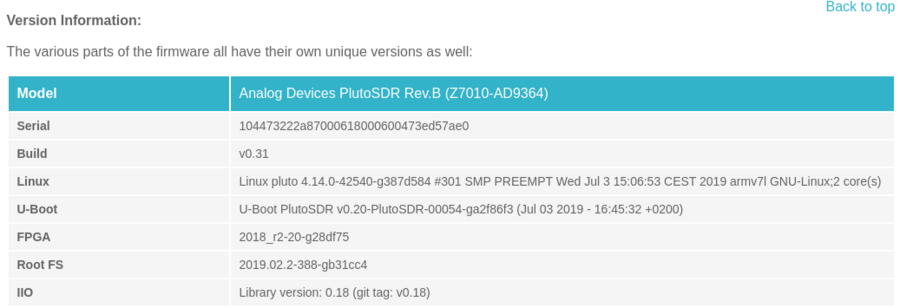
The mass storage device includes an info.html file. Opening this in a
browser and clicking on the “firmware” section will show the firmware version.
Pluto Rev C and D
Pluto Rev C and Pluto Rev D users can access the USB console via the power connector and determine the firmware version from the login splash screen.
Upgrading
Warning
Only update the firmware from a trusted source. Updating firmware from an untrusted source may render your device inoperable or compromise the security of your system.
Mass Storage Update
The preferred method of firmware update is to copy a firmware file (with a
.frm extension) to the mass storage device provided by the target. The
steps are:
Copy the firmware file to the mass storage device
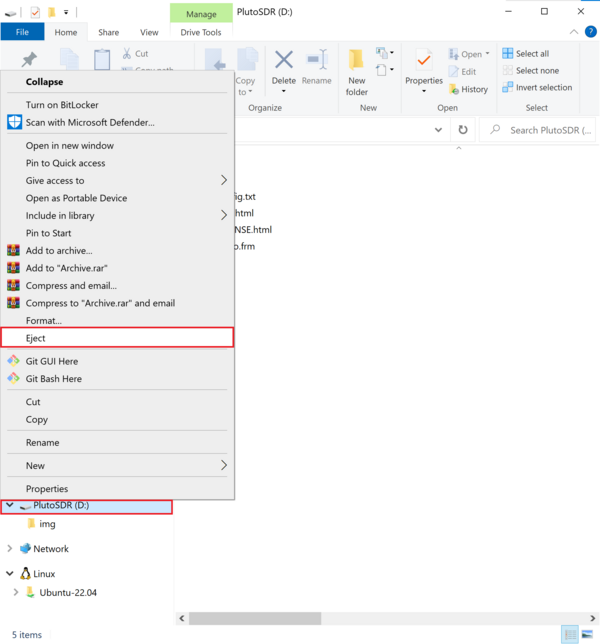
Eject the device (don’t just unplug it)
LED1 will start blinking rapidly
Don’t disconnect the device until rapid blinking stops!
The update process takes approximately 4 minutes
When complete, the device will reappear as a mass storage device
Windows or OSX
Using the standard GUI:
Download the
.frmfile from the latest releaseCopy it to the mass storage device
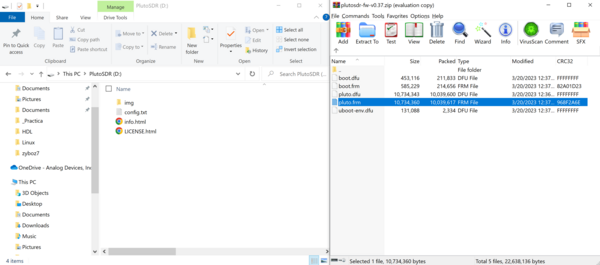
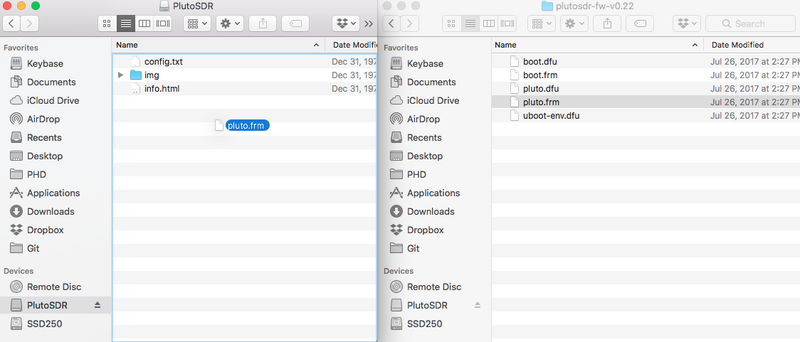
Eject the device (right-click and select “Eject” or use the eject button)
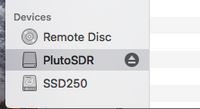
Wait for LED1 to stop blinking rapidly
The device will reappear when the update is complete
Linux
Using the command line:
analog@analog:~$ wget https://github.com/analogdevicesinc/plutosdr-fw/releases/download/v0.XX/pluto.frm
analog@analog:~$ cp pluto.frm /media/analog/PlutoSDR/
analog@analog:~$ sudo eject /media/analog/PlutoSDR
Network Update
For devices that are deployed remotely and accessed using the USB-to-Ethernet
feature, firmware can be updated over the network using the update_frm.sh
utility (available since firmware v0.29).
analog@analog:~$ ssh root@192.168.2.1
root@pluto:~# cd /tmp
root@pluto:/tmp# wget https://github.com/analogdevicesinc/plutosdr-fw/releases/download/v0.XX/pluto.frm
root@pluto:/tmp# unzip pluto.frm
root@pluto:/tmp# /sbin/update_frm.sh /tmp/*.frm
root@pluto:/tmp# reboot
DFU Update
When all else fails, or you want to recover from a bad firmware update, you can use DFU (Device Firmware Upgrade) mode to manually flash the device.
Entering DFU mode
The device can enter DFU mode in several ways:
Manually (three methods):
Press the device button with a toothpick, paper-clip or similar and then apply power (plug in the USB cable)
From the device console, run:
device_reboot sfFrom the U-Boot console, run:
run dfu_sf
Automatically:
If the device detects that the FIT (Flattened Image Tree) checksum is not correct, it will automatically enter DFU mode.
Detecting DFU mode
When in DFU mode:
The DONE LED is OFF, while LED1 is constantly ON
The USB Product ID (PID) changes from
0xb673to0xb674
You can verify DFU mode is active using:
Windows: Device Manager will show “PlutoSDR DFU” under “Universal Serial Bus devices”
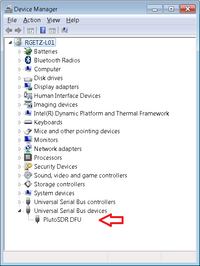
Linux: Run lsusb and look for device ID 0456:b674
analog@analog:~$ lsusb
Bus 002 Device 004: ID 0456:b674 Analog Devices Inc. PlutoSDR (DFU)
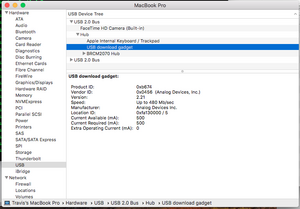
Mac: System Information → USB will show “PlutoSDR DFU” with Product ID
0xb674
Updating via DFU
Windows
Run the UPDATE.BAT script included with the DFU release package. This uses
dfu-util to flash the device.
Note
On some systems, you may need to run the DFU utility twice. The first time it may fail, but the second attempt should succeed.
Linux or OSX
analog@analog:~$ sudo dfu-util -a firmware.dfu -D pluto.dfu
DFU Flash Partitions
The DFU partitions are listed in priority order for recovery:
firmware.dfu- Linux Kernel, Device Drivers and Root Filesystemboot.dfu- U-Boot and First Stage Boot Loaderuboot-env.dfu- U-Boot environment variablesuboot-extra-env.dfu- Extra environment (calibration data, rarely modified)
If you are recovering from a bad firmware update, flash the firmware.dfu
partition first. Only flash boot.dfu if absolutely necessary.
Notifications of new releases
To be notified of new firmware releases, you can “watch” the GitHub repository:
Go to the PlutoSDR firmware repository
Click the “Watch” button in the upper right
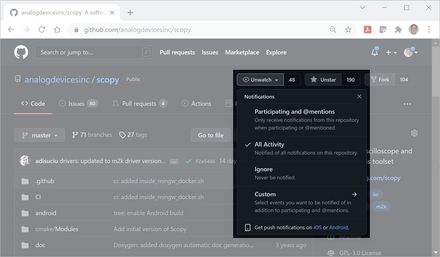
Select “Custom” and check “Releases”
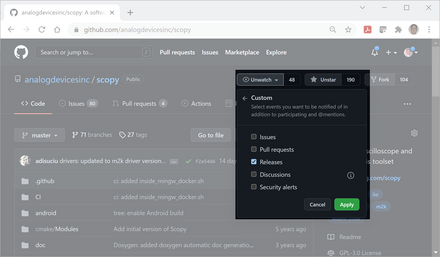
Click “Apply”
You will receive an email notification whenever a new release is published.